
Windchill 10: Mapping Authoring Application to CAD Document Soft Types
Windchill 10.0 introduces support for multiple soft types for CAD documents. Multiple soft type support provides an added level of flexibility to your system providing increased control of how and what attributes are managed as well as to your business processes. However, let’s not get “type happy”. These should be used judiciously for solving a problem and not creating new ones. One common case for soft typing is to assign a different soft type for different authoring applications. This post will go through the setup steps in Windchill for implementing such a rule based on authoring application.
For this example we’ll assume that you are managing both Creo and AutoCAD data and would like each authoring application to create its own soft type, where we have defined these new soft types of CAD Document as CreoDoc and ACADDocument respectively.
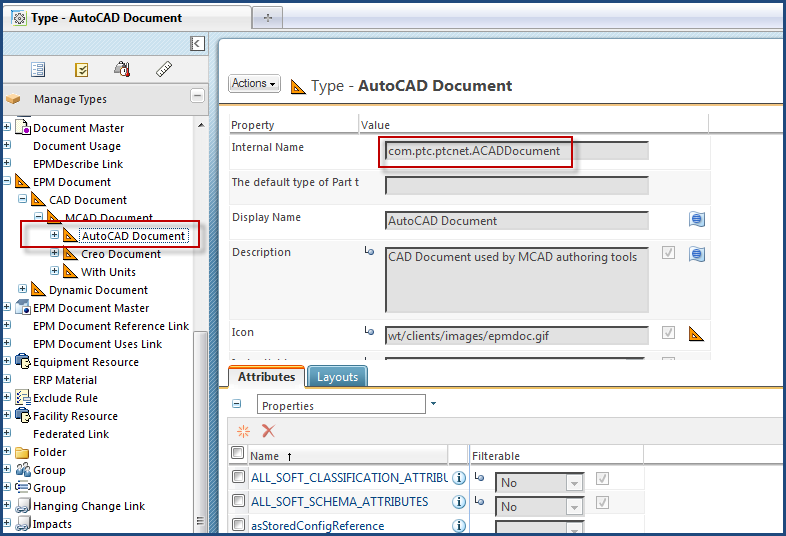
Figure 1: Windchill 10.0 Type Manager and ACADDocument Soft type definition
Step 1: Create the Soft type definitions
Using the type manager simply create the new soft types under CAD Document. You’ll want to define and add the applicable attributes you plan to manage for these types as part of the type creation process. For the sake of brevity I won’t go through the steps for defining a CAD Document soft type here. For more information on type creation take search the Windchill Help Center for “Type Manager”.
Note: If you want to control how these Types are presented in the Windchill UI, I’d suggest taking a look at the Layouts tab on your type definition.
Step 2: Tying the Soft types to the CAD Authoring Applications
For this step you will need to update some files that reside in your Windchill install itself (Remember before making such changes it’s prudent to create backups!).
Specifically, to set this up the file EPMDefaultSoftTypes.xml will be used. This file is located under <Windchill Home>/ codebase/com/ptc/windchill/uwgm/aad/xml.
The first step is to copy this file to the <WIndchill Home>/codebase directory
Next, the EPMDefaultSoftTypes.xml file that was just copied to the <WIndchill Home>/codebase directory is edited to define the mapping between authoring application and the new CAD document soft type definitions. Again, the goal here is to implement the following authoring application to CAD Document soft type definition:
Authoring Application | Authoring Application Internal Name | CAD Document Soft Type Internal Name |
Creo (or Pro/E or Creo Elements/Pro) | PROE | CreoDoc |
AutoCAD | ACAD | ACADDocument |
Let’s first make the changes to establish the Creo mapping. This is easiest done by searching the EPMDefaultSoftTypes.xml file for the string “PROE” (this is the internal name for the authoring application). It should be found encompassed by the following XML syntax:
<AuthAppSoftTypeInfo authAppName="PROE">
<ObjectClassInfo classType="EPMDocument">
<ObjectTypeInfo>
<SoftTypeInfo softTypeId="${internet_domain_name}.DefaultEPMDocument"/> <!-- null sub type -->
<SoftTypeInfo subType="*" softTypeId="${internet_domain_name}.DefaultEPMDocument"/>
</ObjectTypeInfo>
</ObjectClassInfo>
</AuthAppSoftTypeInfo>
Now we want to set the logical identifier of the soft type to be CreoDoc, this is done by replacing the string DefaultEPMDocument with CreoDoc I the SoftTypeInfo section, resulting in:
<AuthAppSoftTypeInfo authAppName="PROE">
<ObjectClassInfo classType="EPMDocument">
<ObjectTypeInfo>
<SoftTypeInfo softTypeId="${internet_domain_name}.CreoDoc"/> <!-- null sub type -->
<SoftTypeInfo subType="*" softTypeId="${internet_domain_name}.CreoDoc"/>
</ObjectTypeInfo>
</ObjectClassInfo>
</AuthAppSoftTypeInfo>
Next, similar steps will be taken to map the AutoCAD authoring application to its soft type using a similar process. In this case “ACAD” is the internal name for the AutoCAD authoring application. Similarly we locate the following block of XML:
<AuthAppSoftTypeInfo authAppName="ACAD">
<ObjectClassInfo classType="EPMDocument">
<ObjectTypeInfo>
<SoftTypeInfo softTypeId="${internet_domain_name}.DefaultEPMDocument"/> <!-- null sub type -->
<SoftTypeInfo subType="*" softTypeId="${internet_domain_name}.DefaultEPMDocument"/>
</ObjectTypeInfo>
</ObjectClassInfo>
</AuthAppSoftTypeInfo>
Substituting DefaultEPMDocument from the SoftTypeInfo section with ACADDocument, resulting in the following:
<AuthAppSoftTypeInfo authAppName="ACAD">
<ObjectClassInfo classType="EPMDocument">
<ObjectTypeInfo>
<SoftTypeInfo softTypeId="${internet_domain_name}.ACADDocument"/> <!-- null sub type -->
<SoftTypeInfo subType="*" softTypeId="${internet_domain_name}.ACADDocument"/>
</ObjectTypeInfo>
</ObjectClassInfo>
</AuthAppSoftTypeInfo>
Save these changes
Step 3: Restart Windchill
Now that the mapping has been established and the changes to EPMDefaultSoftTypes.xml have been saved, the Windchill Method Server must be restarted for these changes to take effect the next time either a Creo or AutoCAD document is checked-in to the system.
Good luck!