Feb 8, 2018 3:47 PM UTC
Solved

Modeling direct 19 increse model quality

Hi, how can I improve the quality of models in modeling direct 19? where are the graphics settings of the application?


can I act directly on the Nvidia control panel?


what settings do your recommend?

 

Feb 12, 2018 1:12 PM UTC

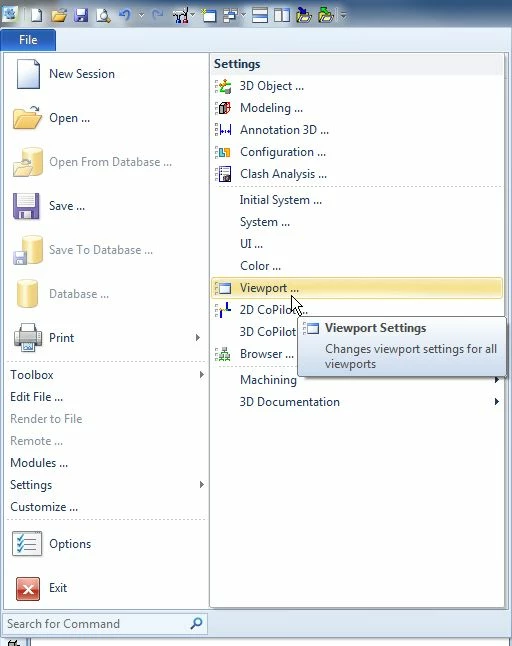
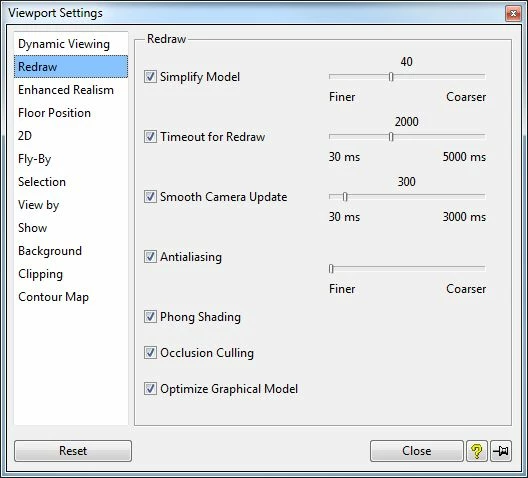
Anti-aliasing settings.  File -> Settings -> Viewport.


Click Redraw.


Regards


Tom


vp settings.JPG

redraw.JPG

4 replies

Feb 8, 2018 3:56 PM UTC

Are you referring to the appearance of the model?  Or, the part resolution?


If it is the appearance, select the part, right click and select part properties.  Select Facets and change the facet accuracy.


If you want all of the parts to have a better facet accuracy, then add this line to you sd_customize file.


(set_facet_resolution 180)  


180 can be set to what you desire, the higher the number the better the accuracy, but the more memory the part takes.


In the future, post questions about Creo Elements Direct Modeling here to make it easy to find.


Region Capture.JPG


Ale666Author
Feb 8, 2018 4:39 PM UTC

thanks for the quick answer.

I noticed that even by going directly to the nvidia control panel, some good results are brought home for the quality of the model.


no options for anti-aliasing ?

Feb 12, 2018 1:12 PM UTC

Anti-aliasing settings.  File -> Settings -> Viewport.


Click Redraw.


Regards


Tom


vp settings.JPG

redraw.JPG