rajskumarAnswer
Feb 6, 2025 1:03 PM UTC

Hello, Thank you for contacting us.

It seems it supports the Modbus TCP/IP protocol. To connect this PLC using Modbus TCP/IP to Kepware, you need to follow the steps below:
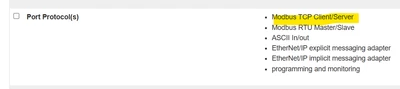
rajskumar_1-1738846893997.png


In Kepware, 

  • Right click on Connectivity and Add New Channel of Modbus TCP/IP Ethernet and change name as per requirement
  • Right click on Channel and Add New Device and change name and IP as per requirement(Modbus default port is 502 but you can confirm with device vendor)
    • Refer this article for ID details in Kepware
  • Add tags based on how it is defined in device
    • Refer driver manual for Modbus Addressing here  

    •  
      rajskumar_4-1738846955361.png


Before start , please check if you can Powershell Test-NetConnect to the device on the port KEPServerEX is trying to use.
 
Powershell has a built in commandlet that can help prove or disprove TCP socket connectivity
Command Syntax: Test-NetConnection [host] -Port [port number]
Example: Test-NetConnection 255.255.255.255 -Port 502

2 replies

rajskumarAnswer
Feb 6, 2025 1:03 PM UTC

Hello, Thank you for contacting us.

It seems it supports the Modbus TCP/IP protocol. To connect this PLC using Modbus TCP/IP to Kepware, you need to follow the steps below:

rajskumar_1-1738846893997.png


In Kepware, 

  • Right click on Connectivity and Add New Channel of Modbus TCP/IP Ethernet and change name as per requirement
  • Right click on Channel and Add New Device and change name and IP as per requirement(Modbus default port is 502 but you can confirm with device vendor)
    • Refer this article for ID details in Kepware
  • Add tags based on how it is defined in device
    • Refer driver manual for Modbus Addressing here  
    •  
      rajskumar_4-1738846955361.png


Before start , please check if you can Powershell Test-NetConnect to the device on the port KEPServerEX is trying to use.
 
Powershell has a built in commandlet that can help prove or disprove TCP socket connectivity
Command Syntax: Test-NetConnection [host] -Port [port number]
Example: Test-NetConnection 255.255.255.255 -Port 502

Feb 6, 2025 6:51 PM UTC

Awesome, thanks for this info