
New Structure Model Tree Search Filters for Creo View 10.1 need Included as Preferences
Please include detailed documentation such as screenshots, images or video.
1. What product and version are you running?
Creo View 11.1.0.0
2. What is the problem?
There are no preferences for managing the new search filter functionality in Creo View. In the image below, Bodies and Parts are checked by default when Creo View is launched. I want this same functionality with the "Columns" options. I'm sure others will want stickyness to these settings with the newly developed Search Model Tree function. Through PTC Case 17886356, we identified that it is not possible to set it.
Note: I also wasted 4 hours trying to apply this to the user_prefs.xml file in Creo View because almost all settings like this are sticky in Creo View already. You resize the screen and close Creo View and this gets set in the user_prefs.xml file! I'm sure other admins will be surprised to see that these setting are not capable of being set.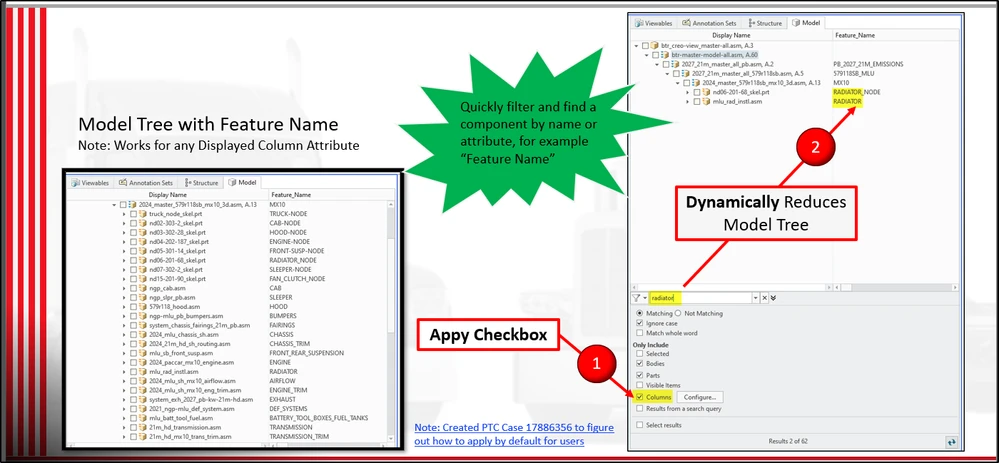
3. Are you using a workaround? If yes, please describe it.
The user must MANUALLY click the applicable box (in our case it is Columns) to attain functionality on every launch. We want to make this default as we put a lot of information in the feature name column.
4. What is the use case for your organization? Describe how your idea would work in context or how it would apply to a practical situation.
I manage a server preference file for Creo View users, so they get a "master model" user interface with a ribbon and settings already applied. This setting to include columns in the search would be very valuable for us as we put a lot of good searchable information in the feature name attribute(column). I want to have the columns always checked to provide an improved search for users working in our master models in Creo View.
5. What impact does this problem currently have on your organization? (Number of users affected, hours of lost productivity, etc.)
50 users looking at large master models in Creo View.
Lost Productivity Use Case 1 - Manually clicking the box on every launch (2 clicks) - Assume 10 users every day for 250 working days in a year. 5000 unnecessary mouse clicks per year.
Lost Productivity Use Case 2 - Not finding items in the large assembly structure because the column is not included in search. User's have to know to go click the checkbox to find objects in the feature name column. There will be user's that get frustrated that items are not found.