
Feb 5, 2015 6:54 PM UTC
Archived

Change Set Datum Symbology to reduce confusion

Related products:Creo Parametric

Currently, the datum properties dialog box shows 3 buttons: a regular datum, an ANSI Y14.5M-1982 datum and an ASME Y14.5M-1994 datum.  Users frequently mistake these sybols to mean that if you select one of these buttons, the datum will conform to that standard.  Unfortunately, the ASME Y14.5M-1994 style button creates an annotation that cannot be hidden on a layer and frequently does not show up correctly in drawings.

After filing a tech support case I found that PTC actually intends is that the ANSI Y14.5M-1982 datum style button is used for 2D drawing annotations and the ASME Y14.5M-1994 style button is used for 3D datum annotations.  The layer issue with the ASME Y14.5M-1994 style selection (3D annotations) is in debate whether it will be fixed in Creo 4.
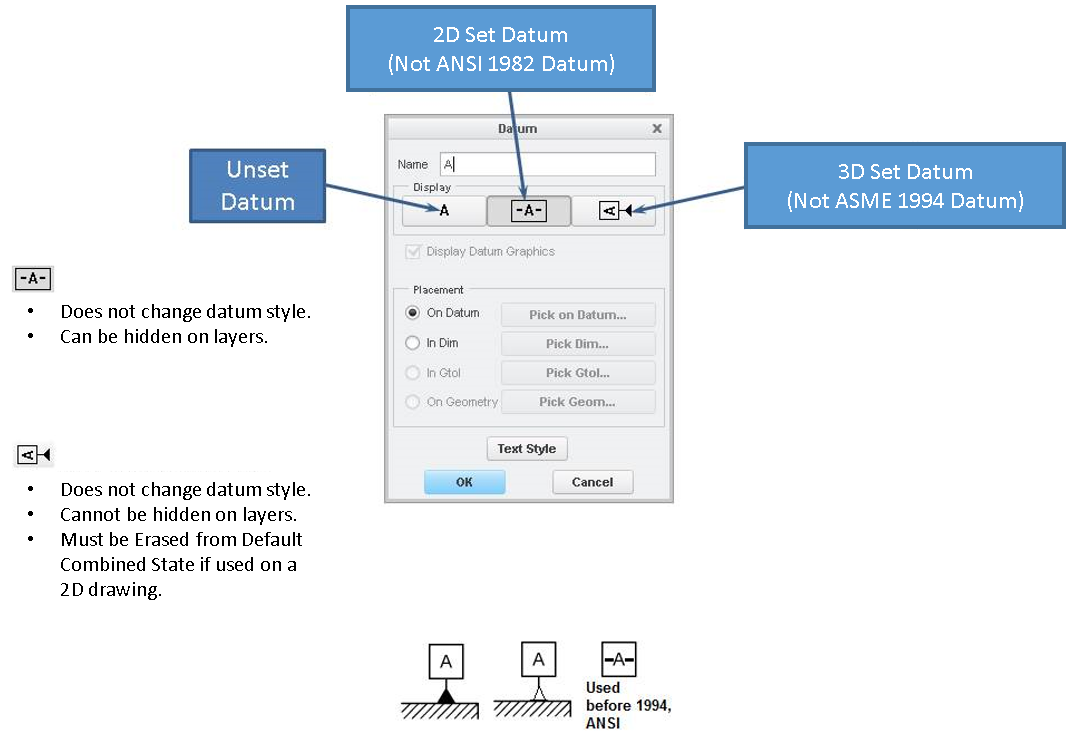
PTC please change the confusing symbology in the datum properties dialog box so that it differentiates between 2D and 3D annotations without confusing users with ANSI and ASME standards.

10 replies

Oct 6, 2015 11:18 PM UTC

This is really becoming a big issue since 3D annotations and datums can no longer be hidden on layers.

Our top level model is sprouting annotations in Creo view.

Please reformat the button displays so that people do not think that 3D annotations are ASME 1994 datums and 2D annotation are 1982 datums.

Oct 21, 2015 7:48 PM UTC

Good news is that we're fixing these issues in Creo 4.0.

Exactly how we're going to fix it is too long to describe here, but rest assured that the new functionality will address these problems.

I'll write up a blog post or something to describe the changes when we get closer to shipping Creo 4.0 and link it back to this idea just to close the loop.

I'll change the status to Implementation in Progress as well.

Oct 21, 2015 8:07 PM UTC

After re-reading the idea, I have a question.

Do you have some examples of the 1994 datum where it does not show correctly in a drawing? I wasn't aware of any issues where the 1994 datum doesn't show correctly in a drawing, but the 1982 datum does.

The workaround for hiding the datum annotations is to either remove them from the Combination State or to Erase them. You have to go to the Annotate tab in 3D to get access to these commands. I understand that's not as good as using layers (which will be fixed in Creo 4.0), but for now that's what's available.

Oct 21, 2015 8:21 PM UTC

Awesome!  I'll add this to our bug fix matrix.

Oct 21, 2015 8:28 PM UTC

The workaround you mention is one we have recently discovered.  The problem is that it is not mentioned in any training materials and new users just assume Set Datum Tag is the one they want because the button looks like a 1994 style datum.  It then shows up in the Creo View visualization and we have to have them either change it to a Set Datum, which is unintuitive because the button looks like a 1982 style datum, or they have to Erase it in the Default Combined State, which is also unintuitive because it sounds like you're deleting it, since everywhere else the function is called "Hide".  Is a standardization of the hide/erase terminology also scheduled for Creo 4.0?

Oct 21, 2015 8:40 PM UTC
May 12, 2017 5:48 PM UTC

Did I miss the Blog Post that is suppose to close the loop? Please re-post.

Thanks

May 12, 2017 6:00 PM UTC

I updated the text and graphic to describe the issue better and to add that the 3D set datums can be hidden by erasing them in the default combined state.

May 12, 2017 6:04 PM UTC

Thanks however my reply was to Raphael's comment "I'll write up a blog post or something to describe the changes when we get closer to shipping Creo 4.0 and link it back to this idea just to close the loop."

olivierlp
Community Manager
Jan 4, 2022 5:01 PM UTC
Status changed to: Archived

Hello,

We are archiving your idea as part of a general review. This action is based on the age of your idea and the total number of votes received, as per this announcement.

You can always post a new idea with all the details required in the form.

Thank you for your participation.

Olivier