
Apr 23, 2014 11:48 AM UTC
Question

Re: How to change the featurewise colour with out selecting the feature surfaces?

Perhaps I'm not understanding what you're asking, as you can see in the below image, I have a part that is gray with cream surfaces on the cuts. Maybe this is not what you're asking.
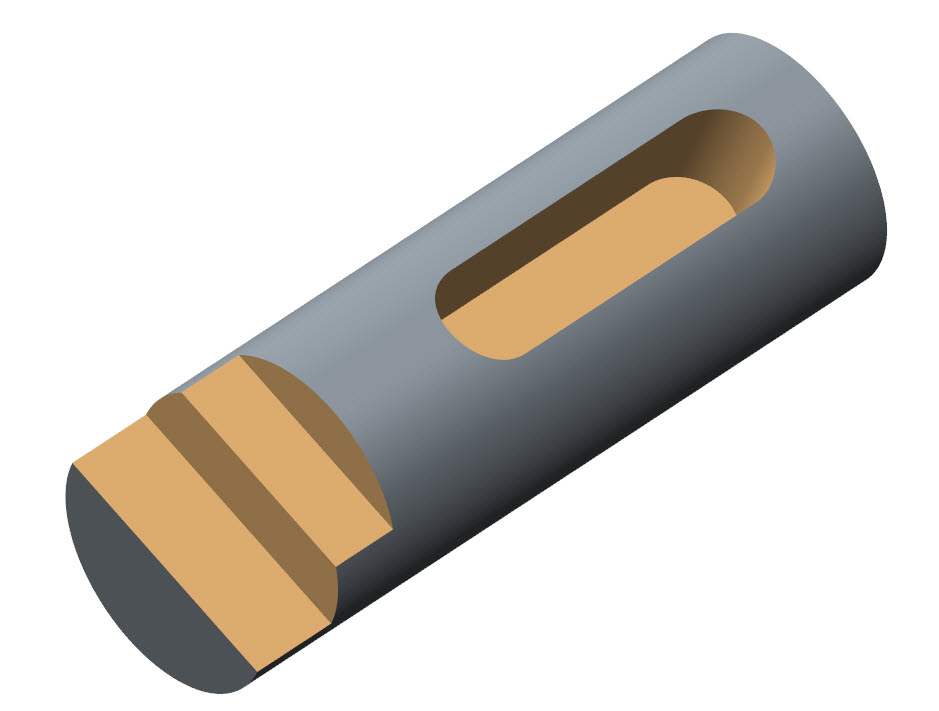
rod_cream_surfaces.jpg

    4 replies

    Apr 23, 2014 11:58 AM UTC

    Dear Sir,

    Correct me If I wrong, I have also understood what you have shown in the picture is coloring one feature. However Mr. Jay Pittaliya wanted to have color by selecting the feature not by selecting surfaces so I wrote it is not possible.

    Regards,

    Jayanta Sarkar

    Apr 23, 2014 12:12 PM UTC

    Yes, Mr. Jayanta Sarkar is absolutely right. I want to colour individual feature surfaces in a part, not in assly.

    Apr 23, 2014 1:29 PM UTC

    Fundamentally, you cannot do what you are asking. You cannot color all surfaces created by a particular feature by picking that feature. Here is the list of items you can select when applying colors:

    1.png

    That leaves you with two options.

    1. Manually color all surfaces created by each feature. This is done most easily by using the "Intent Surface" choice shown above. Usually you can gather all surface related to a particular feature very quickly.
    2. Change the part color to be what you want the features to be, then go back and change the color of the original outer surfaces of the part before the features are added.

    The second method is what I prefer. Each time a new feature is added it will automatically show up with the "inside" color.

    2.PNG