
Feb 4, 2019 4:22 PM UTC
Solved

Symbol appearance after Creo upgrade

Hi,
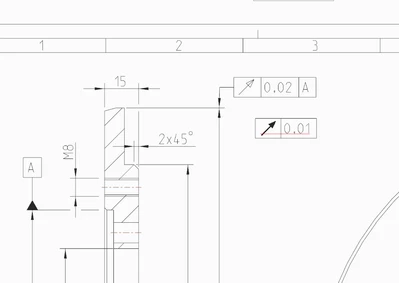
symbols in drawingsymbols in drawingafter upgrading from Creo 2 to Creo 5 I now find that sometimes symbols (such as +/-, °, diameter, ...) in drawings changed their appearance. It used to be a single line (ISO font?) and now is more like a bold character as shown in the picture. It might be related to the model template because sometimes I get the old form and measures that are created in the drawing get the new form. The same is true for the symbols in the picture: the first GT belongs to the part (thin line), the second one belongs to the drawing (bold). How can I get back the old form? The thick characters make pdf exports ugly and hard to read.


Thanks for any suggestions!

TomUAnswer
Feb 4, 2019 5:00 PM UTC

I only have to find out, how I can configure this setting right by using config files. I don't know yet where to set it for the model...


You can't.  It's only set in the detail options area (of both the model and the drawing).  This is one of the exceedingly frustrating things about detail options.  There is no way to administratively control them.  They have to be manually set on every single drawing.  Obviously this is a huge pain with a large number of already existing drawings.

8 replies

JonasCAuthor
Feb 4, 2019 4:56 PM UTC

Hi Tom,


thank you for your reply! I also just found that option in an *.dtl config file (on our system it is DIN.dtl but I think this has been customized by us). Although I could only change the font for the drawing.


So now I know that I have the same setting both (separately) for the model and the drawing, thanks!


I only have to find out, how I can configure this setting right by using config files. I don't know yet where to set it for the model...

TomUAnswer
Feb 4, 2019 5:00 PM UTC

I only have to find out, how I can configure this setting right by using config files. I don't know yet where to set it for the model...


You can't.  It's only set in the detail options area (of both the model and the drawing).  This is one of the exceedingly frustrating things about detail options.  There is no way to administratively control them.  They have to be manually set on every single drawing.  Obviously this is a huge pain with a large number of already existing drawings.