
Oct 23, 2017 8:21 PM UTC
Question

Issue: "Import Validation Failure notification"
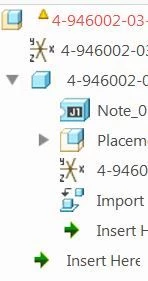
Capture20171023.JPG

As in the snapshot above 

I opened up an assembly of just one part (reason why is not important).

The assembly was in red. Moving the cursor over the yellow triangle gave me the above notice (in quotes). Opening the part, all looked normal.

Bottom Line-How do I repair this assembly?

And is it something i have to be on the lookout in Creo 4.0

Never received this message in previous versions (including Pre-Wildfire!!)


10 replies

Oct 25, 2017 3:47 PM UTC

Use Import validation tool for details. Right click on assembly name in model tree and Import Validation, this may provide you some information. 

Nov 8, 2017 10:37 PM UTC

I would LOVE to know how to turn this off.We use a lot of imported data but we don't care or need it solid. Yet since switching to 4.0 we get this error and can't get it to go away. Never going to waste the time fixing the data. In the setting for 3rd party I can turn off everything but the "import validation error:.

Nov 9, 2017 6:51 AM UTC

Hi,


can you upload some data for testing purposes ?

Nov 9, 2017 11:57 AM UTC

I can not uload data. But here are some screen shots of what I'm refering to.

2017-11-09_6-52-28.jpg2017-11-09_6-53-18.jpg

Nov 9, 2017 12:03 PM UTC

Hi,


it seems to me that you can use following config.pro option.


NMGR_IMPORT_VALID_ISSUE

!*** values available ... DONT_SHOW, WARNING_W_POPUP, WARNING, ERROR

May 1, 2018 1:36 PM UTC

Any update on a fix for this?


SUPER-Annoying to say the least.

May 1, 2018 5:49 PM UTC

As with most things in Creo, I gave up trying to fix it and just live with it. 😞

May 9, 2018 6:18 PM UTC

SOLVED (permanent fix)
1) open your assembly or part with the bad surfaces.
2) If you go look at the red flag notifications now, there will be a blue button missing in it. see the picture below.
blue box.PNG

The only way to get the blue button to pop up is to press ctrl+g to regen a few times and press ctrl+a to activate the window then go back to the menu.

3) select a part number in the import validation failure tree
4) click the blue list button that pops up
5) change the settings to ignore in case of failure and click save
change to ignore.PNG

6) click save to save this config.val defaults to wherever your default creo working directory so it is pulled every time creo opens. This way creo will load it each time you open.
7) click update on the import validation tool
😎 everything looks great. hit save and then close and reopen. still getting an error......
just a bit more work!

7) FINAL STEP. open the bad part and go to the import validation tool and click update. Then go to the import feature and click the doctor tool and then geometry checks and then click edit "IDD SETTINGS" and uncheck all the boxes. save the doctor and save the part and from now on it opens with no errors. This is the only step you will need to repeat when you create new import features in the future

idd settings location.PNG

idd settings.PNG


😎 also, if you hate creo how it opens your parts and assemblys over the network crazy slow, just add these lines to your config. Your loading times will increase by around 100 fold (not kidding).

ALLOW_FREEZE_FAILED_ASSY_COMP=yes
dm_http_compression_level=0
nt_cache_dirs YES
instance_search_exhaustive no
dir_cache_max 10000
NMGR_IMPORT_VALID_ISSUE DONT_SHOW


-Branden

using creo for 6 months but i think i'm getting the hang of it now!