Feb 27, 2017 12:13 PM UTC
Solved

How to make @S DIMENSION AS BASIC DIMENSION?

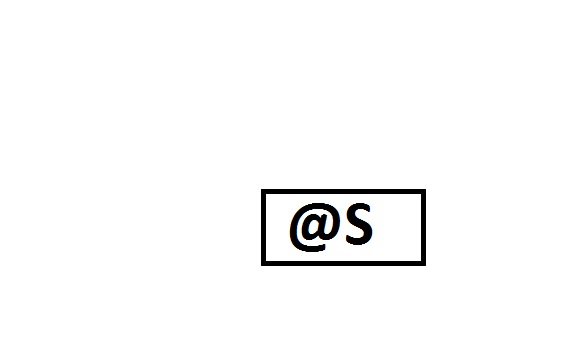
OVERRITED.jpg NEED TO CREATE BASIC @S DIMENSION. HOW TO DO SAME.

ALSO SUGGEST FOR @O BASIC DIMENSION.

Creo‌

Chris3Answer
Feb 27, 2017 1:47 PM UTC

For a dimension set to @S, you should be able to just click the basic radio button in the display tab for the dimension properties.
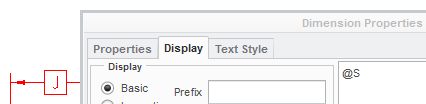
Capture.PNG

For @O you can add @[ and @] before and after your text like this:

@O@[YOUR TEXT GOES HERE@]

15 replies

Chris3Answer
Feb 27, 2017 1:47 PM UTC

For a dimension set to @S, you should be able to just click the basic radio button in the display tab for the dimension properties.

Capture.PNG

For @O you can add @[ and @] before and after your text like this:

@O@[YOUR TEXT GOES HERE@]

achopadeAuthor
Feb 27, 2017 2:10 PM UTC

Hello Chris

Thanks for reply;

For @s its only taking whatever mention in name it wont allow spaces.

I need to mention DIM C so I am mention Name as C & in description I am writing DIM @S

It results DIM BASIC C not BASIC DIM C.

Please try with same . I am forcing @S because it will not give any error while running MODELCHECK regenerate.

For @O it is showing : Owerrited dimension as a warning

Feb 27, 2017 2:39 PM UTC

I think it is ASME Y14.5 that controls this (although I could be wrong). This behavior is intentional to comply with a standard. Only the dimension gets boxed. If you want something else you need to use the @[ and @]

Feb 27, 2017 2:32 PM UTC

If you add "dim" to the prefix box, it puts it inside the basic box.

OR

use the coding mentioned by Chris

@[DIM @S@]

to get the desired result without using the basic toggle

achopadeAuthor
Mar 22, 2017 1:24 PM UTC

Thanks Stephen;

Helps me a lot

Mar 22, 2017 4:19 PM UTC

If either of those we correct. Go ahead and mark it as correct, for those who may search on this topic and find this thread.