Aug 10, 2021 12:49 PM UTC
Solved

How can I make this dimension look like this?

When I use the dimension option in the annotations tab the dimension end up been like this (in the red circle): 
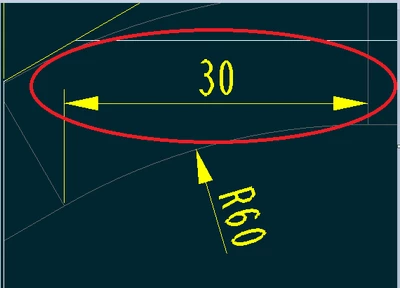
RA_9909671_0-1628599600453.png

but I needed it to be like this (also in the red circle):
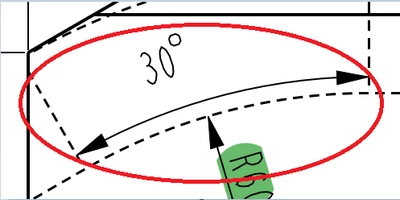
RA_9909671_2-1628599714743.png

How can I do it?

StephenWAnswer
Aug 10, 2021 1:03 PM UTC

Make sure when you select, you are selecting the line and not the vertex (both places). Selecting 2 lines at an angle to each other will yield an angle dimension but if either selection is a point (vertex/endpoint/midpoint), the dimension will be a linear dimension (vertical/horizontal/slanted) based on your placement.

2 replies

StephenWAnswer
Aug 10, 2021 1:03 PM UTC

Make sure when you select, you are selecting the line and not the vertex (both places). Selecting 2 lines at an angle to each other will yield an angle dimension but if either selection is a point (vertex/endpoint/midpoint), the dimension will be a linear dimension (vertical/horizontal/slanted) based on your placement.

Aug 10, 2021 1:25 PM UTC

True! Now it worked.
Thanks for the help
