Aug 17, 2017 1:37 PM UTC
Solved

Changing text width factor - Creo 3

In Creo 2 and older (i.e. the 'old' drawing note / text editor), I could easily switch to the formatting tab within the editor dialogue box and alter the text width factor (typically when my change note was just a couple of characters too long for the change table column).


With the WYSIWYG editor in Creo 3, I can't find a way to change the width factor of a note or table cell directly.  The only way I've found is to create a new text style, then apply it to my note.  This is particularly tedious because it doesn't save the link; if I want to change it again (trial and error), I have to modify the style and then re-apply it to the note.


Have I missed a hidden tool somewhere?
Aug 18, 2017 1:17 PM UTC

Hi Jonathan

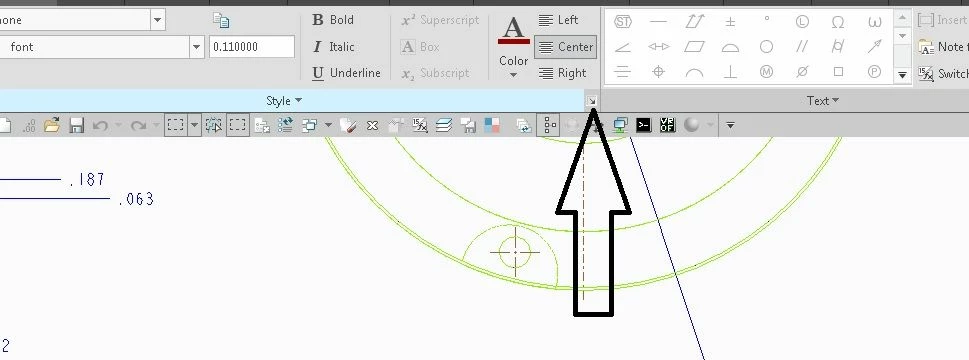
In the format tab>style group there is a liitle right pointed arrow for edieting the text style on bottom right


format.jpg

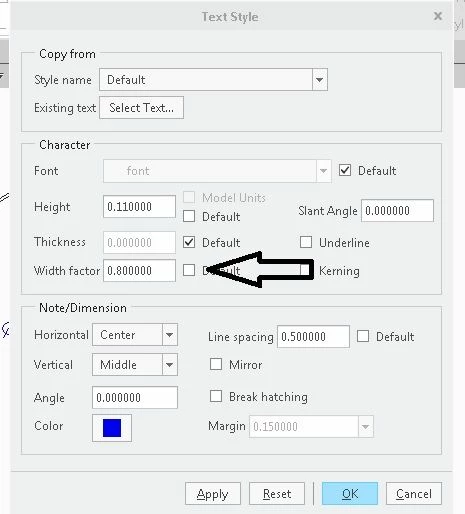
clicking on this button pops up old style text format editor, with width factor 


format2.jpg


Regards

Pushkar

5 replies

Aug 18, 2017 1:17 PM UTC

Hi Jonathan

In the format tab>style group there is a liitle right pointed arrow for edieting the text style on bottom right


format.jpg

clicking on this button pops up old style text format editor, with width factor 


format2.jpg


Regards

Pushkar

May 7, 2019 1:39 PM UTC

Hi , 


I was following the mentioned way to change width factor of a note. While we are able to change the width factor of an entire note at once, but if I want to change width factor only of a certain part of text in a note, then how to do it ?   This was possible in Creo 2, but I am unable to do it here in Creo 3 .  When I select a part of text in note , the little right pointed arrow for editing the text style on bottom right is grayed out.


May 7, 2019 2:19 PM UTC

BEFORE selecting the text, in the annotate tab, select TEXT STYLE, then pick the lower line of text you wish to change the formatting of