Nov 4, 2019 4:55 AM UTC
Solved

Annotate in Drawing

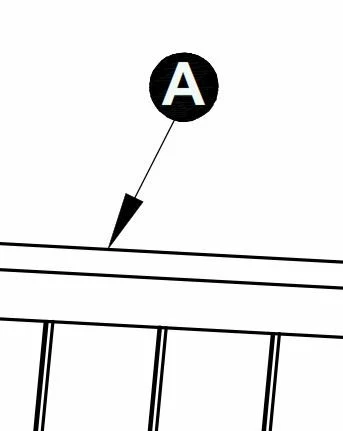
How to create leader note in the drawing ? Same as in this picture.

Please help me.

Thank you so much!Capture.JPG

Nov 4, 2019 11:00 AM UTC

@ttathanh wrote:

Thanks,

I can create drawing symbol same as this picture but i don't know to fill black backround in circle.

Please help me.

Thank you so much!


Hi,

oh yes ... setting background looks problematic. I can use Hatch/Fill command to fill circle with color. Unfortunatelly Creo does not enable me to define that note containing A letter always appears above the filled area. So this method is therefore not applicable.

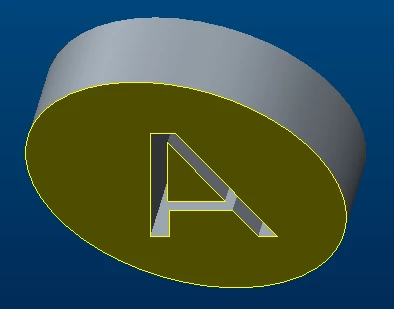
You can create fixed symbol (this means you cannot set letter displayed in it) using following method.

1.] create part ... letter is cut in cylinder, x-section is defined
model.png

2.] place the part's view into temporary drawing

3.] apply Convert to Draft Entities command

4.] use resulting 2D geometry to create drawing symbol
 

4 replies

Nov 4, 2019 6:25 AM UTC

Hi,

you have to create drawing symbol corresponding to your request.

ttathanhAuthor
Nov 4, 2019 9:19 AM UTC

Thanks,

I can create drawing symbol same as this picture but i don't know to fill black backround in circle.

Please help me.

Thank you so much!Capture.JPG2.JPG

Nov 4, 2019 11:00 AM UTC

@ttathanh wrote:

Thanks,

I can create drawing symbol same as this picture but i don't know to fill black backround in circle.

Please help me.

Thank you so much!


Hi,

oh yes ... setting background looks problematic. I can use Hatch/Fill command to fill circle with color. Unfortunatelly Creo does not enable me to define that note containing A letter always appears above the filled area. So this method is therefore not applicable.

You can create fixed symbol (this means you cannot set letter displayed in it) using following method.

1.] create part ... letter is cut in cylinder, x-section is defined

model.png

2.] place the part's view into temporary drawing

3.] apply Convert to Draft Entities command

4.] use resulting 2D geometry to create drawing symbol
